What You See Is What You Get Editor: How It Works
What You See Is What You Get Editor explained: how it works, where it fits, and the trade-offs that matter for your pages.
Published on 12 min read
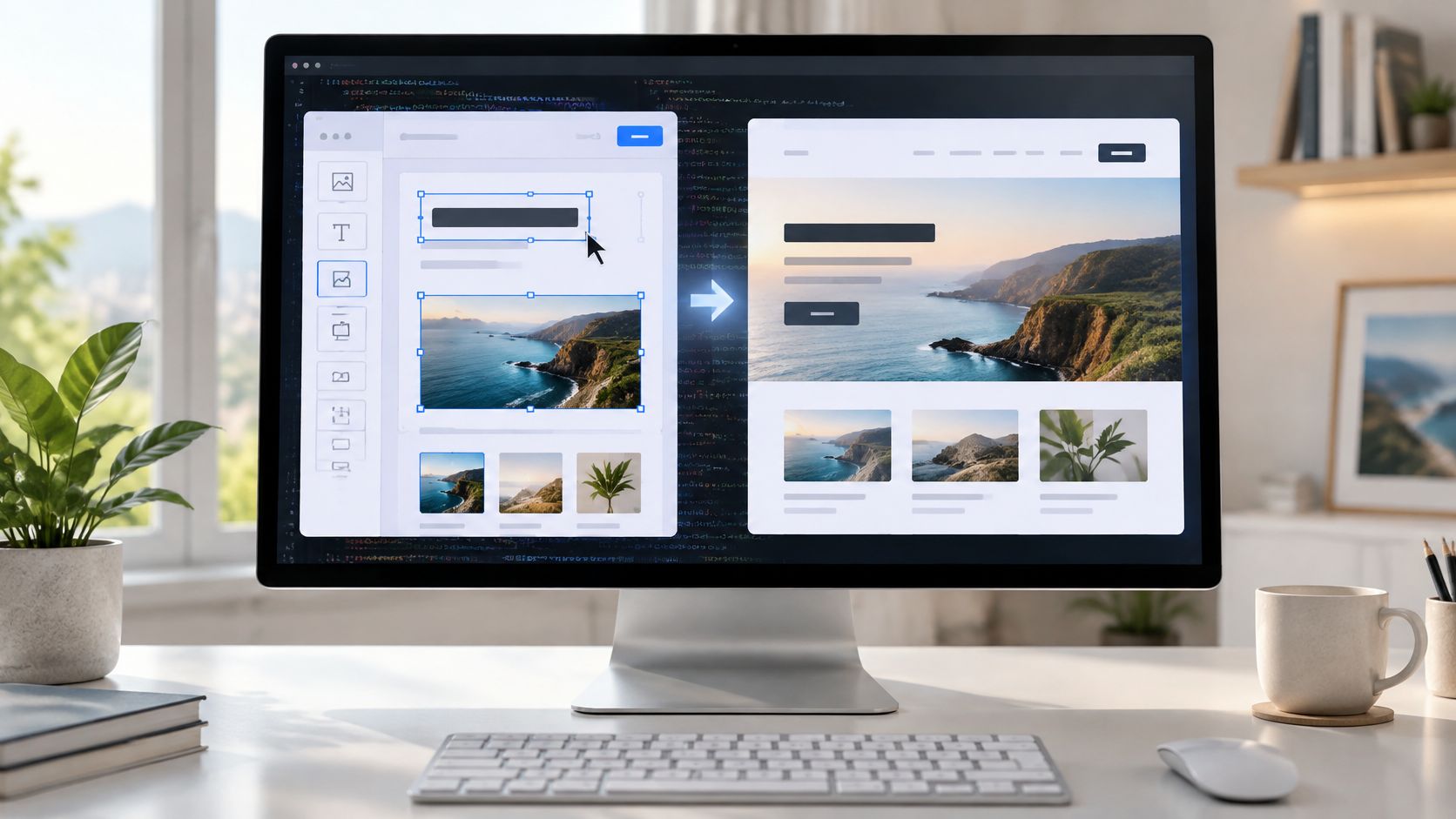
Table of contents
- What a WYSIWYG Editor Means in Plain Terms
- How a WYSIWYG Editor Works Behind the Scenes
- The Four Stages
- Where the Idea Came From and Why It Spread
- WYSIWYG Compared With Markdown and Code Editors
- Why Version Control Matters
- The Verdict by Situation
- Real Examples and Common Use Cases
- Benefits, Drawbacks and Hidden Costs on Live Pages
- The Cost Most Guides Skip
- Test a WYSIWYG Editor Before You Commit
- Add a Consent Check
A WYSIWYG editor (What You See Is What You Get) lets you change text, images and layout in a view that already looks like the finished page, and it saves those changes as code behind the scenes. You're likely staring at one now, trying to fix a headline before a launch without asking a developer for help. The screen looks right. The question is what that neat screen costs you later.
What a WYSIWYG Editor Means in Plain Terms
Think of writing a letter in a word processor. You press the bold button. The word turns bold at once. You don't type symbols and wait for a separate step to see if it worked.
That's the whole idea. The screen you type on looks like the page your reader will see. It's not a code file you have to imagine as a finished page.
You format by clicking, and you see the result as you click. That's a what you see is what you get editor in action.
You've already used several. Microsoft Word and Google Docs do this for documents. The WordPress block editor does it for posts and pages. The rich-text box in your email tool does it for messages. Rich-text means text with styling, like bold, headings, and links.
If you're new to the system that stores and publishes those pages, understanding content management systems will help you place the editor in context. The editor is the typing surface. The content management system, or CMS, is the wider tool that saves, organizes, and publishes your work.
The side-by-side view below is typical. You edit on one side and preview on the other.

One catch matters. The preview is an approximation. Fonts, spacing, and widths can differ between browsers and devices. A browser is the app, like Chrome or Safari, that shows web pages. What looks tidy on your laptop can wrap oddly on a phone.
Try this self-test. If you format by clicking buttons and see the result immediately, you're using a WYSIWYG editor.
How a WYSIWYG Editor Works Behind the Scenes
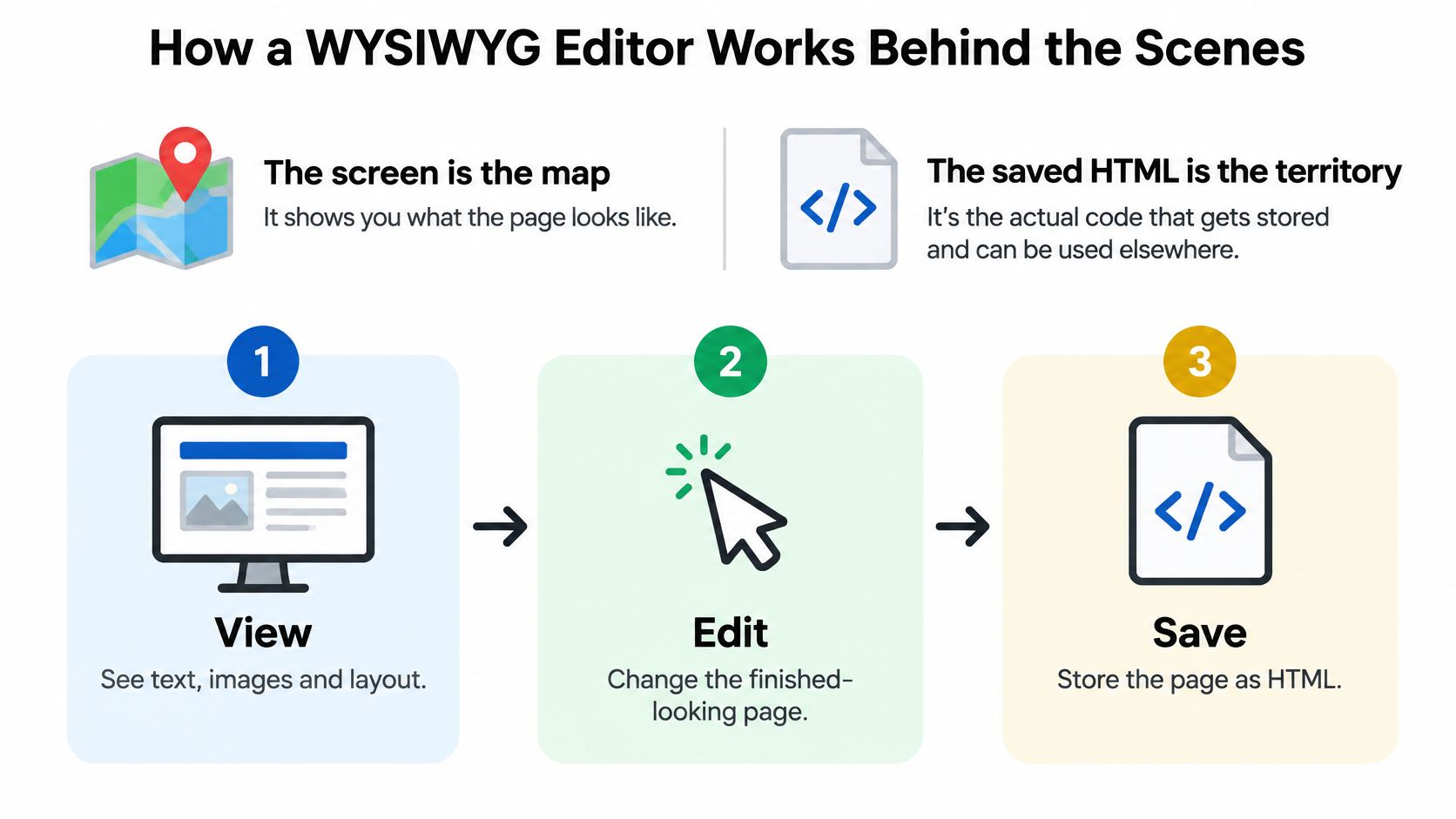
Here's a useful comparison. The screen is the map. The saved file is the territory. The map helps you work, but the territory is what gets stored and sent to readers.
That saved file is usually HTML. HTML is the code language that tells a browser what's a heading, what's a paragraph, and what's a link.
This flow shows the basic loop from view to saved code.
The Four Stages
- You select or click: You highlight text or press a toolbar button.
- The model updates: The editor changes its internal document model, which is its private map of your content.
- The view redraws: The screen re-renders from that model, so you see the change.
- The editor saves: On save, it writes HTML from the model.
The hard part hides between stages two and four. University of Illinois accessibility research on contenteditable identifies three problems. Several DOM structures can produce the same visual result. The DOM is the browser's tree-like map of page elements. One visible selection can map to several DOM selections. Edits must also stay consistent across browsers, especially after paste.
Native contenteditable, the browser's built-in editable area, breaks all three. So real editors add fixes. Normalization means tidying messy code into one standard form. Selection mapping means tracking exactly where your cursor sits in the code. Paste sanitization means cleaning copied content before it enters your page.
| What You Do | What the Editor Saves | Where It Often Breaks |
|---|---|---|
| Select a word and click Bold | Wrapping strong element | Bold nested inside bold creates duplicate tags |
| Press Enter to start a new line | New paragraph element | Stray empty paragraphs appear in the output |
| Paste text from a Word file | Copied styles and inline formatting | Fonts and colours leak into the page |
| Insert a bulleted list | List element with list items | List breaks when pasted into another editor |
| Drag an image to the left | Alignment class or inline style | Layout shifts at mobile widths |
| Undo after several edits | Snapshot of the document model | Undo skips steps after a paste |
A toolbar that looks right tells you little about reliability. Broken markup can damage responsive layouts, which adapt to screen size, and accessibility trees, which screen readers use to describe a page aloud.
Where the Idea Came From and Why It Spread
A page can look finished on screen while hidden formatting, slow scripts, or missing consent checks create extra work later. That trade-off is part of the history of WYSIWYG editors: they made editing easier to see, while the cost of turning that view into a reliable result remained.
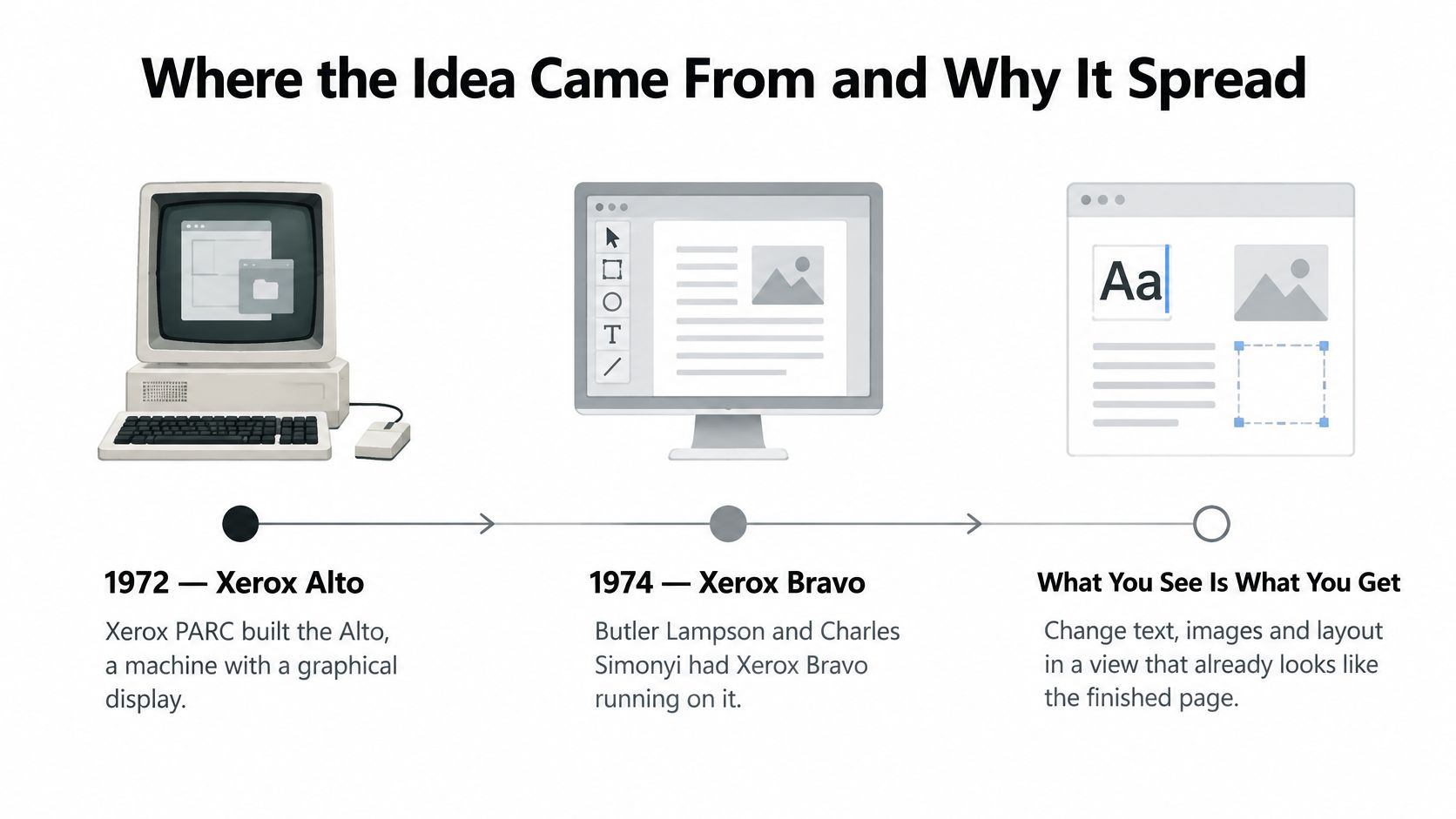
The story starts before the web. In 1972, Xerox PARC built the Alto, a computer with a graphical display: windows and pictures appeared instead of text alone. By 1974, Butler Lampson and Charles Simonyi had Xerox Bravo running on it. Bravo displayed text in fonts, sizes, and layouts that matched the printed page. A history of FrontPage and early visual editing traces Bravo as an early milestone in visual editing.
Bravo helped shape later Xerox products, and its central idea endured: show people the document as they edit it. The screen became a preview of the result, much like seeing a room's arrangement before moving in.
WYSIWYG word processors brought that approach to office work. MacWrite and Microsoft Word for Windows showed formatted pages on screen, so writers could judge headings and spacing as they worked.
Web editors applied the same idea to pages. Silicon Graphics launched WebMagic around 1995. Vermeer Technologies released FrontPage in November 1995; Microsoft acquired Vermeer in January 1996 for approximately $133 million, according to a retrospective on FrontPage, Dreamweaver and Netscape Composer. Macromedia launched Dreamweaver in 1997, combining visual editing with access to source code, the instructions behind the page.
The appeal is clear: seeing a draft can save effort. Yet a polished preview does not guarantee clean output or a fast, dependable live page. That distinction matters whenever an editor is chosen for real work.
WYSIWYG Compared With Markdown and Code Editors
Think of three ways to drive. A what you see is what you get editor is like a car dashboard. You turn controls and see the effect. Markdown is like shorthand notes you write for yourself. Raw HTML is like working directly on the engine.
Markdown is a plain-text way to mark formatting with symbols. You write a hash for a heading, for example. A tool later converts those symbols into a styled page. Raw HTML skips the shorthand. You write the actual page code yourself.
Each suits a different driver. The table puts them side by side.
| Criteria | WYSIWYG | Markdown | Raw HTML |
|---|---|---|---|
| Learning curve | Low, like a word processor | Low to moderate, a few symbols to learn | High, needs markup knowledge |
| Visual control of layout | High, changes appear as you make them | Limited, preview needed | Full, but only through code |
| Output cleanliness | Depends on the editor; paste can add junk | Clean and consistent | Clean if written well |
| Speed for long technical documents | Slower with heavy formatting | Fast for experienced writers | Fast for developers |
| Version control and diffs | Hard to review, noisy markup | Easy, plain-text differences | Easy, plain-text differences |
| Typical users | Marketers, editors, business teams | Developers, technical writers, bloggers | Developers and web engineers |
Why Version Control Matters
Version control means keeping a history of changes so a team can review or undo them. Git is the common tool for this. A diff is the list of lines that changed between two versions.
Plain-text files produce readable diffs. You can see that one sentence changed. WYSIWYG output often produces noisy markup instead. One small edit can rewrite many code lines, so reviewers can't tell what really changed.
Don't judge by the label alone. A WYSIWYG tool can store clean output if its paste handling is strong. Check the saved HTML. That check matters more than the category name.
The Verdict by Situation
- Marketing and sales teams editing pages: Choose WYSIWYG, since speed and visual judgement matter most.
- Developers writing documentation in a repository: Choose markdown or code, since review and history matter most. A repository is the shared folder where Git tracks files.
- Mixed teams: Choose WYSIWYG with a clean-paste rule and a regular output check.
Practical rule: Pick the tool that matches who edits daily, then verify what it saves.
Real Examples and Common Use Cases
A marketing manager needs to change a product page. She doesn't file a developer ticket. She opens the CMS, sees the headline and button in place, and edits them in minutes.
That's the daily win. She judges the page as a reader would. She can see if the new headline is too long before she publishes.
This photo shows that familiar setup, editing a layout directly on screen.

The developer side looks different. A software team adds a rich-text field inside its app. Users will type notes, paste content, and add links there. The team needs the editor to store clean HTML and strip unsafe scripts. A script is small code that runs in the browser, and unsafe scripts can harm users or steal data.
This need is common, not niche. In the 2024 State of Rich Text Editors survey from Tiny Technologies, 646 technology professionals took part and more than 70% said rich-text editors were critical to their applications.
If you're comparing site builders rather than embedded editors, top tools for building websites without code gives a useful starting list. For the pages those tools produce, a plain explanation of landing pages covers what a single focused page must do.
| Use Case | Example Tools | Check First |
|---|---|---|
| Documents and reports | Microsoft Word, Google Docs | Styles, page layout and PDF export |
| Websites and blog posts | WordPress block editor, Wix editor | Mobile preview and page speed |
| Web design with code access | Dreamweaver | Clean code output and hosting fit |
| Rich-text fields inside apps | TinyMCE, CKEditor, Quill | Paste handling and HTML sanitising |
| Landing-page variants | Polish | Flicker, variant control and consent disclosure |
HTML sanitising means removing risky or unwanted code from saved content. Flicker means visitors briefly see the original page before a changed version appears. Both sound technical. Both affect trust in plain, visible ways.
The short video below shows visual editing in motion, which helps if toolbars still feel abstract.
Why does visual editing win for non-technical users? They judge spacing, hierarchy, and typography while they write. Hierarchy means which elements look most important. Typography means how text looks, including font and size. They don't wait for a separate render, which is the step where code becomes a visible page.
Benefits, Drawbacks and Hidden Costs on Live Pages
A page can look polished in the editor and still carry extra costs once it goes live. The visual result is only part of the decision: the editor's saved code, pasted formatting, and scripts can affect how the page works for visitors.
For staff who do not write code, visual editors can make publishing faster. They can see changes as they work, and shared styles help keep pages consistent. The trade-off is that an editor's output may need cleanup or add weight to the live page.
Common drawbacks include:
- Bloated markup: The editor may save more code than the page needs. That extra code can make later fixes harder.
- Messy paste from Word: Copied fonts and colours can come along with the text and conflict with the site's design.
- Accessibility gaps: A line made to look like a heading may lack the heading tag that screen readers use to understand page structure.
- Lock-in: Content saved in a proprietary format, meaning a format owned by one vendor, may be difficult to move to another tool.
The Cost Most Guides Skip
The costs can be easy to miss because the editing screen may look correct. But bloated markup adds code, and editor scripts can take time to load in a visitor's browser. Pasted formatting can also create inconsistent styles that someone must fix later. These are costs of the editor and its output, not just of how the page looks.
Page speed matters because visitors have to wait for content and controls to appear. Yottaa's 2025 Web Performance Index reported by Business Wire covered more than 500 million visits across over 1,300 e-commerce sites. It found that reducing load time by one second increased mobile conversions by 3%. A conversion is a desired action, such as a purchase or signup. This is general evidence that speed can affect results, not a prediction of what a particular editor will do.
To judge an editor's cost, compare the page before and after adding it. Check whether its scripts or saved markup delay visible content or make buttons and forms respond slowly. JavaScript is code that runs in the browser and can change a page after it loads. First contentful paint means the moment the first visible content appears. Interaction delay means the time visitors wait for a page control to respond. Bounce rate is the share of visitors who leave without taking action. Core Web Vitals are Google's measures of loading speed, responsiveness, and layout stability. Guidance on pages optimized for the web offers further context for reviewing page performance.
| Measure | What It Reveals |
|---|---|
| JavaScript weight | How much script the editor adds |
| First contentful paint | Whether visible content appears later |
| Interaction delay | Whether buttons and forms respond slowly |
| Bounce rate | Whether more visitors leave without acting |
How the editor delivers changes matters. Client-side rewriting updates the page in the visitor's browser after it loads, which can cause flicker, a brief display of the original page before the change appears. Server-side or edge delivery sends the finished page from a server, sometimes one near the visitor, before it renders. That can reduce flicker, though it does not remove the need to check the page's code and speed.
A polished design is useful only if the live page remains usable. Keep the visual gains, but count the code, loading time, and cleanup the editor adds.
Test a WYSIWYG Editor Before You Commit
Don't judge an editor by its demo page. Run these checks on one of your real pages.
- Undo and redo: Make ten or more edits, then undo and redo through all of them.
- Paste test: Paste from Word and Google Docs, then inspect the saved HTML for stray styles.
- Nested formatting: Try bold, italic, and links inside lists. Nested means one style sits inside another.
- Keyboard only: Edit a full paragraph without touching the mouse.
- Cross-browser output: Save the same edit in Chrome, Safari, and Firefox and compare the HTML.
- Mobile speed: Load the page with the editor script on a mid-range phone, not just your laptop.
Add a Consent Check
If your editor personalizes pages, test trust as well as speed. Personalization means changing content based on visitor context, like their campaign or device.
A 2025 Qualtrics XM Institute study of more than 23,000 consumers found that 64% prefer companies that tailor experiences, yet 53% are very or extremely concerned about personal-data privacy and only 33% trust companies to use data responsibly. Consumers were most comfortable with personalization based on purchase history at 45% and website visits at 42%, according to the same study above.
So favour low-sensitivity context. Use campaign, landing page, device, country, and returning-visitor status. Avoid overly specific messaging that feels like surveillance. Disclose what's being adapted, in plain words visitors can find.
You also need a baseline before testing variants. In 2024, the median landing-page conversion rate across industries was 6.6%, according to Unbounce's Conversion Benchmark Report. Treat that as rough context, not a target. Test each variant against your own control using the net-impact measures above, and compare options with a review of the best landing page tools if you're still shortlisting.
Choose the editor that passes every check on your slowest device, not the one with the prettiest toolbar.
If you want the editing ease without hand-managing every variant, Polish reads your landing page and writes new headline, subheading, and call-to-action versions for each visitor based on context like campaign, device, and country. Install the script, review what it produces, and let each visit sharpen the next one.
- WYSIWYG editor
- rich text editor
- visual editor
- WYSIWYG meaning
- content editor
Your website rewrites itself until it converts.
Polish writes new versions of your headlines and CTAs, tests them on your real visitors and keeps the ones that win.
Start free