Website Forms for Lead Generation: Fields, Fixes and Tests
Build website forms for lead generation that convert: field counts, error fixes, mobile tips and a test plan you can run this week.
Published on 11 min read

Table of contents
- How Each Extra Field Costs You Leads
- Separate hesitation from abandonment
- How to Build a Lead Form Step by Step
- Build around decisions sales will make
- Apply the field budget
- Fixing Errors, Labels and Mobile Input Problems
- Make recovery part of the specification
- Diagnose patterns before buying more traffic
- Where to Place Forms and Which Format Fits Each Visitor
- Match the request to visitor intent
- Place the form where the decision happens
- Personalizing Forms Without Losing Visitor Trust
- Adapt with clear limits
- Test Your Form Before You Scale It
- Define the result before collecting it
- Pass the launch checks
A custom-order form's completion rate rose from 14% to 54% after improvements, according to Formsort's Pole Design case study. That's a substantial change, but it doesn't tell you to copy the form. It tells you to examine what visitors must do before they can become customers.
Effective website forms for lead generation balance effort, qualification and trust. Your job isn't to collect the most information or produce the most submissions. It's to collect enough useful information that sales can act, without making suitable buyers abandon the request.
How Each Extra Field Costs You Leads
Forms with three fields converted at 23.1%, compared with 6.9% for ten or more fields, in the benchmark summary published by IvyForms. The table shows the full comparison from that summary, with percentage-point differences calculated against the shortest form.
Conversion rate by number of form fields
| Form length (fields) | Conversion rate | Drop vs 3 fields |
|---|---|---|
| 3 fields | 23.1% | Baseline |
| 5 fields | 17.0% | -6.1 points |
| 7 fields | 11.4% | -11.7 points |
| 10 or more fields | 6.9% | -16.2 points |
Treat this as directional evidence, not a forecast. Different offers, visitors and qualification requirements can produce different results. The comparison doesn't establish that removing a particular question will deliver the corresponding improvement on your website.
A field also costs more than typing time. A phone request can raise concerns about unwanted calls. A budget question can require an internal conversation. A poorly defined company-size field can make someone stop and decide whether you mean employees, revenue or locations.
Separate hesitation from abandonment
Measure the funnel in stages rather than treating every lost visitor as a form-design problem:
- Page visit to form start: Weak results suggest visitors haven't accepted the offer. Check the headline, promised outcome, call to action and placement.
- Form start to completion: Weak results suggest visitors encounter effort, confusion, errors or doubts after engaging.
- Completion to useful lead: Weak results suggest your questions aren't identifying suitable prospects, or your offer attracts the wrong audience.
Pricing rule: Keep a field only when its qualification or routing value exceeds its measured conversion cost.
That value needs an owner. If nobody can explain what decision an answer changes, you don't yet have a reason to request it before submission.
How to Build a Lead Form Step by Step
Start with the business decision each answer supports, not the fields available in your form builder. Baymard's checkout-form analysis offers a useful framework for scrutinizing unnecessary input, although checkout findings shouldn't be treated as lead-generation benchmarks.
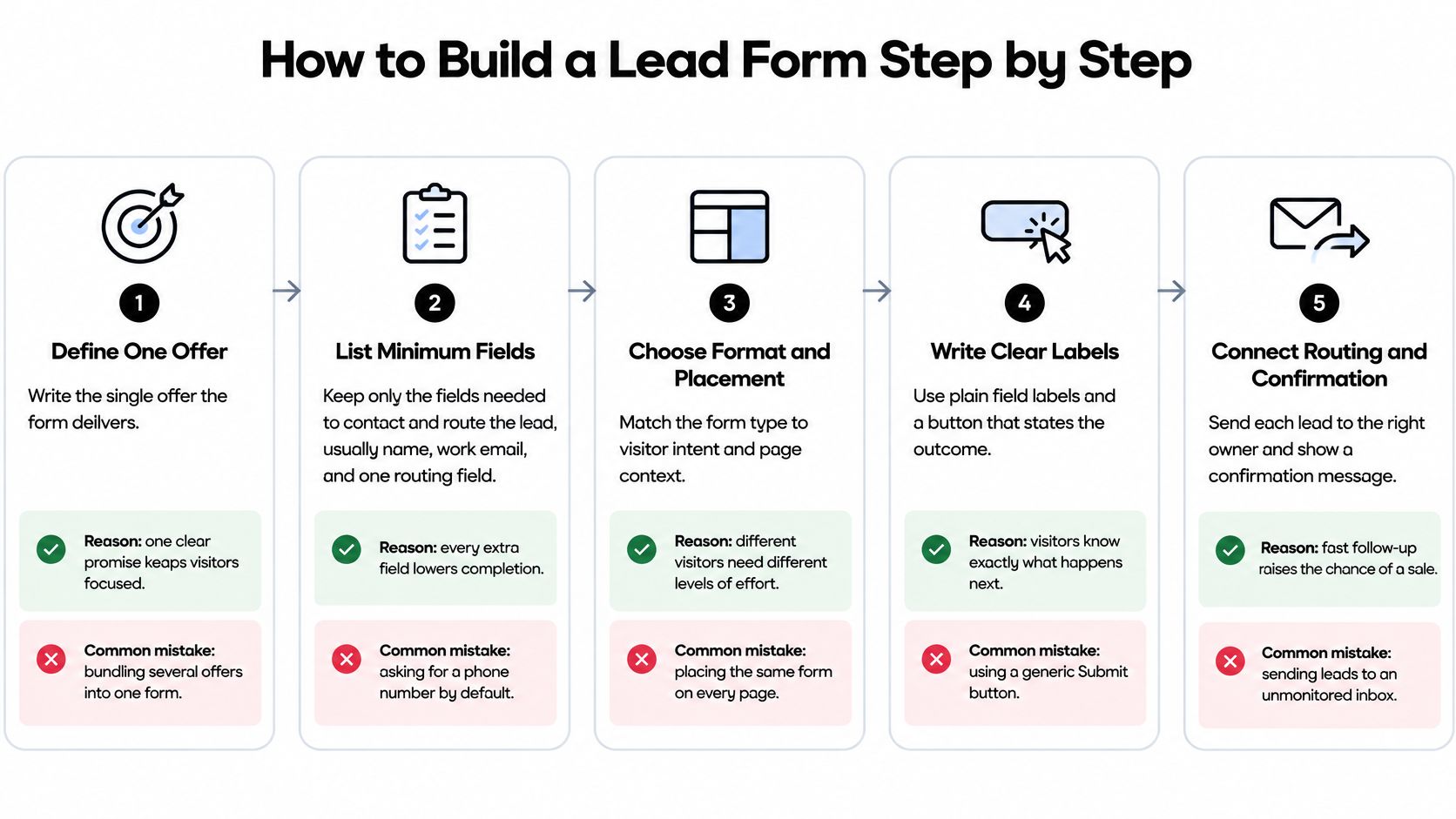
Use this process overview to connect the offer, form and follow-up.
Build around decisions sales will make
-
Define the offer and minimum contact details. Write exactly what the visitor receives: a product demonstration, a pricing estimate or a downloadable resource. Name and work email are a reasonable starting point for a business inquiry, but even the name should have a purpose. Common mistake: requesting a phone number before explaining why a call is necessary.
-
Give every qualification field an action. Ask the sales owner what changes when someone selects a company-size band, role or stated need. An answer might determine account ownership, eligibility or which specialist handles the request. Common mistake: adding fields for possible future analysis that nobody currently performs.
-
Move enrichment after conversion. Put nonessential questions on the thank-you page or in a follow-up email. Keep the promised resource available even when visitors decline the extra questions. Common mistake: making an optional profile survey a hidden condition of receiving the offer.
-
Specify labels and required status. Mark each field clearly and write button copy that describes the actual outcome. Use Request a demo if someone must confirm availability afterward, rather than implying that submission books a meeting. Common mistake: relying on unexplained asterisks or promising an outcome the workflow doesn't deliver.
-
Instrument the baseline before launch. Record form starts, field interactions, validation errors and successful submissions. Connect each submission to its traffic source and eventual CRM status without sending personal field values into analytics. Common mistake: tracking button clicks as completed leads.
Apply the field budget
Say a B2B software team proposes replacing a ten-field demo form with a five-field version. The proposed fields are name, work email, company, country and company size. Company size remains the only qualification question because sales uses it to assign the account team; country handles territory routing.
Role, budget, timeline, phone and project description move out of the initial request. This is a hypothetical design decision, not a promised performance improvement.
Document what each remaining field changes, then check whether sales accepts the resulting lead volume. A field stays when its contribution to routing or qualification outweighs the lost opportunities. Otherwise, remove it or collect it later.
Fixing Errors, Labels and Mobile Input Problems
Generic errors leave visitors to diagnose your form. In Baymard's mobile checkout-form findings, 92% of studied sites used generic error messages, while 94% failed to clearly identify required and optional fields. Those are checkout findings, but the implementation questions apply directly to lead capture.
Form symptoms, causes and fixes
| Symptom | Likely cause | Fix |
|---|---|---|
| Generic Invalid input message | Message names no field and no correction | Explain the correction, such as Enter a work email, for example name@company.com |
| Required fields look like optional ones | Required markers are missing, or optional fields are unlabeled | Mark optional fields with the word optional and use one rule across the page |
| Form clears after a failed submit | Page reloads and resets every input | Keep all entered values and move focus to the first invalid field |
| Phone or name rejected | Strict format rules or split first and last name inputs | Accept common phone formats, use one name field, and enable autocomplete |
| Letters appear instead of a phone keypad | Input type isn't set correctly | Use the appropriate input type, such as tel or email |
| Errors cluster on one device | A disappearing label may obscure the field's purpose | Move the label above the control and retest on that device |
Make recovery part of the specification
Validate after someone leaves a field, rather than flagging an unfinished answer on every keystroke. After a failed submission, preserve their entries and move keyboard focus to the first invalid control. Associate its error message programmatically with the input so assistive technology can identify the problem.
Be careful with work-email restrictions. If you reject personal email domains, explain that requirement before submission and provide a contact route for legitimate buyers who can't satisfy it.
A visitor shouldn't have to guess which answer your software will accept.
On mobile, keep labels visible above controls. Enable appropriate autocomplete attributes, avoid splitting names and phone numbers unnecessarily, and test the complete flow on actual devices. A desktop preview narrowed to a phone-sized window won't expose every keyboard or browser issue.
Use the video as a prompt for reviewing the interaction, then verify your own implementation.
Diagnose patterns before buying more traffic
Break down errors by field, device, browser and traffic source. If visitors repeatedly fail the same input, inspect its accepted formats and instructions before blaming audience quality. Device clustering is a clue, not proof of a particular cause.
When visitors don't reach the form, use a broader landing-page optimization review. When submission succeeds but ownership or follow-up fails, Captiwate's discussion can help you rethink your inbound lead capture process beyond the interface.
Where to Place Forms and Which Format Fits Each Visitor
A shorter static form isn't automatically the right experience. Static forms let visitors scan the entire request before committing. Interactive forms can explain choices and hide irrelevant questions, but they can also conceal the remaining effort or slow down someone who already knows what they want.
A 2025 vendor-published Outgrow benchmark reported 47.3% average conversion for interactive forms versus 2.8% for traditional forms, across more than 50,000 forms at 1,200 companies. This wasn't a controlled causal comparison, so it doesn't establish that switching formats caused the difference. Use it to justify a test, not a revenue forecast.
Evaluate the format in the context of the page around it.

Match the request to visitor intent
- High-intent branded search visitors: Test a short, visible form near the top of a demo or contact page. Don't force someone seeking a conversation through an assessment first.
- Paid social and unfamiliar visitors: Explain the offer and show relevant proof before asking for contact details. An interactive diagnostic makes sense when its answers produce useful guidance.
- Returning visitors: Reduce repeated explanation and previously answered questions when you can do so reliably. Keep a way to correct remembered information.
- Visitors from different countries: Accommodate local phone and address formats. Change question order only when it helps the task, not merely because location data is available.
A focused campaign page is another option when the visitor needs a single offer without competing navigation. FOMOchat's guide to capture qualified leads with squeeze pages is useful for considering that layout, provided the page still explains the exchange clearly.
Place the form where the decision happens
For a high-intent page, test placement above the fold so the next action is immediately available. For cold traffic, place it after a concise proof block that answers the main objection. At the end of a long article, offer a resource closely related to what the reader just finished.
Avoid treating a pop-up as the default fix for poor placement. An overlay can interrupt someone before they understand the offer, and it needs usable dismissal and keyboard behavior.
Split a single traffic source between format or placement variants. Compare qualified pipeline and the work required to handle those leads, not just submission totals.
Personalizing Forms Without Losing Visitor Trust
Personalization can improve relevance while making visitors uncomfortable about how you recognized them. In a simulated AI-personalization experiment published in the International Journal of Social Sciences, AI personalization produced higher click-through and conversion rates than rule-based personalization, but disclosure reduced perceived authenticity, trust and purchase intention; 77.5% of participants wanted an opt-out mechanism. A simulated experiment isn't proof of what your visitors will do, but it gives you a reason to measure trust alongside conversion.
Start with context that has a clear connection to the visit. Campaign information can establish which offer someone clicked. Device information can help you select an appropriate layout. Country and returning status may help, but they aren't necessarily visitor-declared information, so don't treat them as permission to collect more data.
Adapt with clear limits
- Explain what changes. State whether the form uses campaign information or previous answers to adjust questions. Describe the purpose in plain language.
- Offer a standard version. Let visitors decline adaptation without losing access to the offer or receiving a deliberately worse experience.
- Minimize collection. Don't infer sensitive traits or request information merely because enrichment tools make it available.
- Define retention. Assign a deletion period to additional personalization data, identify who owns that policy, and confirm applicable consent requirements before deployment.
Keep disclosure separate from marketing permission. Explain which information supports the requested service, which processing is optional, and how visitors can change their choice. Only promise controls your implementation actually provides.
Reducing irrelevant questions is useful personalization. Demonstrating how much you know about a visitor usually isn't.
Use website personalization examples to consider relevant adaptations, then test both the adapted and standard forms. Dynamic questions need persistent labels, sensible focus behavior and correctly announced changes for screen-reader users. Check comprehension with people who have different language and cognitive needs.
Judge personalization by relevance and trust together. More submissions won't compensate for an experience that leaves suitable buyers reluctant to continue.
Test Your Form Before You Scale It
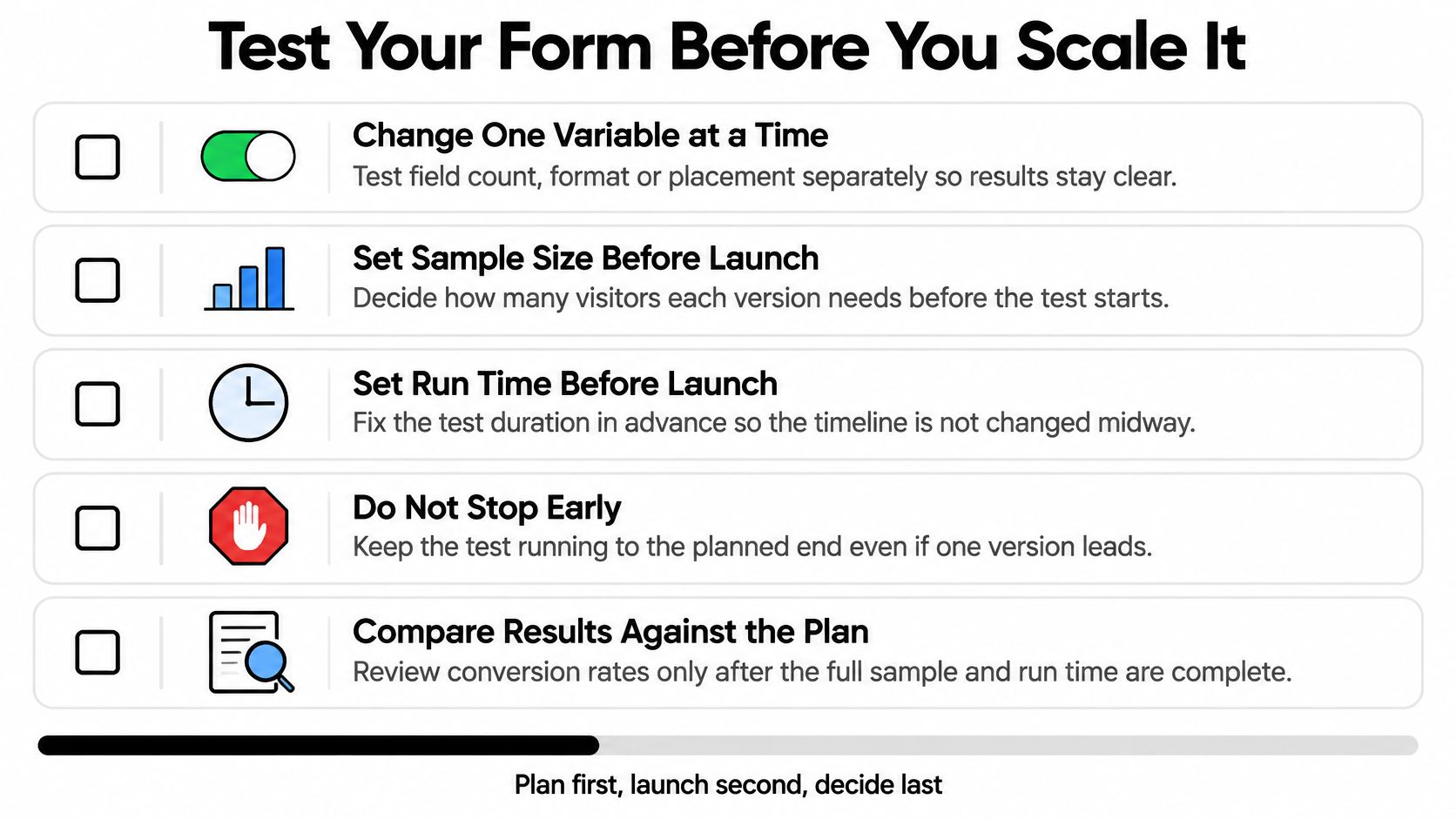
Choose the decision before choosing the variant. If you're testing whether a qualification question is worth keeping, hold the offer, placement and format steady. If you change everything together, you won't know which change affected the result.
Write the test plan before launch, using this checklist as a planning aid.
Define the result before collecting it
Set the sample size from your baseline, the smallest worthwhile difference and the statistical method you'll use. Set the run time to account for your traffic pattern and downstream qualification delay. Don't stop because a variant leads temporarily, although a broken form or privacy problem warrants stopping traffic.
Use a landing-page split-test plan to document assignment and measurement. Keep visitors in the same variant when they return, and pass the variant identifier into the CRM.
Track the complete chain:
- Visit to start: Does the page persuade visitors to engage?
- Start to completion: Can they finish the request?
- Completion to qualified lead: Do submissions meet your agreed criteria?
- Qualified lead to sales acceptance: Will sales pursue them?
- Revenue per visitor: Does the variant produce commercial value after the sales cycle has had time to develop?
Pass the launch checks
Use Uxia's AI-powered usability checks for product teams as an additional review aid, not a replacement for submitting test leads through the live workflow.
Pre-launch form checklist
| Check | What good looks like |
|---|---|
| Field rules | Every field passes the label, error and keyboard checks |
| Consent text | Privacy and consent wording sits next to the submit button |
| Thank-you page | Explains the next step and any follow-up email |
| Spam protection | Enabled and tested without blocking real leads |
| Tracking | Field starts, completions, errors and submissions all fire |
| Downstream | Sales can see the source and fields for each lead |
Submit valid, invalid and duplicate test entries. Confirm that the CRM receives the correct values, assigns an owner and records the experiment variant. Separate test submissions from production reporting.
Ship the version that improves qualified pipeline, subject to acceptable handling costs and spam levels. Keep the shorter version only if sales accepts its leads, and don't declare a revenue winner before opportunities have had a reasonable chance to progress.
If visitors rarely start the form, leave its fields fixed and test the surrounding headline, subheading and call to action by visitor segment. That isolates the offer presentation from the input experience.
Polish offers an autonomous AI agent that adapts landing-page headlines, subheadings and calls to action using visitor context. Visit it to test the message around your lead form while keeping the fields fixed, then compare qualified leads rather than clicks.
- website forms
- lead generation forms
- form optimization
- lead capture
- form conversion rate
Your website rewrites itself until it converts.
Polish writes new versions of your headlines and CTAs, tests them on your real visitors and keeps the ones that win.
Start free